Marketo to HubSpot Migration
Reference: SOP-MAR-001 ·
1. Purpose
This SOP outlines the steps to migrate a marketing automation environment from Marketo to HubSpot. It covers asset inventory, portal configuration, asset migration, data export and import, suppression-list setup, cutover, and post-launch monitoring. The goal is a clean migration with no double sends, no broken redirects, and no lost contact records.
2. Scope
This SOP applies to any team executing a Marketo to HubSpot migration. It assumes a HubSpot license is already purchased and that the migrator has admin access in both platforms. Custom-object work, deep custom-code integrations, and historical activity log imports are out of scope and require a separate workstream.
3. Definitions
- Asset: Any Marketo element to migrate (form, email, template, list, smart campaign, landing page, program, property).
- Smart Campaign: Marketo's term for an automated workflow. Equivalent to a HubSpot Workflow.
- Smart List: Marketo's dynamic list (criteria-based, recalculated on the fly). Equivalent to a HubSpot Active List.
- Static List: A fixed list of records. Equivalent on both platforms.
- Subscription Type: A HubSpot-level category that every marketing email requires. Manages opt-in / opt-out per channel.
- Suppression List: A static list attached to a workflow that prevents specific contacts from re-running through it. Used to keep Marketo-era enrollees out of the HubSpot version of the same workflow at cutover.
- Cutover: The moment HubSpot becomes the system of record and Marketo stops sending.
3.1 Marketo icon reference
Marketo uses a fixed icon per asset type across its UI. Yellow icons are active assets; gray icons are inactive. Use the icon to triage what to migrate.
| Marketo icon | Marketo tool | HubSpot equivalent |
|---|---|---|
 | Triggers | Workflows |
 | Batch or Smart Campaign | Workflows or Form Automation |
 | Marketing Email | |
 | Email Template | Marketing Email Templates |
 | Form | Forms |
 | Landing Page | Landing Pages |
 | Landing Page Template | Design Tools, Templates, and Themes |
 | Smart List | Active Lists |
 | Static List | Static Lists |
 | Program | Campaigns |
4. Roles and Responsibilities
| Role | Responsibilities |
|---|---|
| Migration Lead | Owns the migration plan, asset inventory, and timeline. Coordinates across roles and signs off on go-live. |
| Marketing Operator | Audits Marketo assets, decides what migrates and what gets deprecated, validates email templates and lead scoring in HubSpot. |
| IT / CRM Admin | Configures HubSpot portal defaults, users and permissions, sending domain, tracking domain, and any CRM sync (e.g., Salesforce). |
| Developer (as needed) | Rebuilds custom HTML email or landing-page templates, configures custom objects, handles API-based data transfer for large databases. |
| Stakeholders | Sign off on Kill/Keep decisions, subscription strategy, and cutover date. |
5. Prerequisites
- HubSpot license active, with admin access for the migration team. Marketing Hub Enterprise plus Operations Hub Professional is recommended.
- Marketo admin access for the migration team.
- Access to all integrations Marketo connects to (Salesforce, dedupe tools, ad platforms, sales-engagement tools).
- Shared documentation space (Google Drive, Notion, Confluence) for the asset inventory.
- A copy of Aptitude8's Marketo to HubSpot guide for visual reference of HubSpot UI screens.
6. Procedure
6.1 Build the asset inventory
Create a shared spreadsheet with one tab per asset family. Document each item to migrate, its dependencies, and its HubSpot target.
- Users, Properties & Forms tab: users to provision (team + permission set), every Marketo property mapped to its HubSpot counterpart (with type and picklist options), every form with notification recipients, required fields, hidden fields.
- Lists & Workflows tab: lists with Active/Static flag and link to the Marketo source; workflows with exact name, link to the Marketo Members List (needed at cutover for suppression), and a side-by-side link to the HubSpot version once built.
- Emails, Landing Pages & Programs tab: email templates to rebuild, individual emails with subscription type, landing pages with both Marketo and HubSpot URLs, and the associated program/campaign.

6.2 Configure the HubSpot portal
Navigate to Settings → Account Setup → Account Defaults. Configure the tabs in order: General (company name, domain, address), Security (SSO, 2FA), Branding (Brand Kit logos, colors, theme), User Defaults (set before adding users; defaults do not retroactively apply), and Currency.
6.3 Configure tracking and analytics
Navigate to Tools → Tracking & Analytics → Tracking Code.
- Add every domain you want tracked under the Advanced Tracking tab, including external (non-HubSpot-hosted) domains.
- Enable Automatic Cross-Domain Tracking. Without it, traffic from external domains defaults to Direct and source attribution is lost.
- Enable Bot Filtering.
- Create one Analytics View per tracked domain. Views are not retroactive, so create them on day one.
6.4 Set up users, teams, and permissions
Navigate to Settings → Users & Teams. Create Teams that match the org structure (Sales, Marketing, Service, Admin). Start from HubSpot's built-in Permission Sets (View Only, Standard User, Content Marketer, Marketing Manager, Sales Manager, Sales Rep, Super Admin); only build custom sets when none of the defaults fit. Name Permission Sets and Teams the same where they map for clarity. Enforce MFA.
6.5 Build templates and themes
Website / Landing pages: upload or customize a theme under Settings → Tools → Website → Themes. Recreate Marketo landing-page templates as HubSpot templates via Design Manager.
Emails: use HubSpot's stock drag-and-drop email templates as a starting point. Choose the one closest to each Marketo template, customize, and save as a HubSpot template. Map Marketo personalization tokens to HubSpot tokens, and Marketo dynamic-content segments to HubSpot lists.
6.6 Migrate properties
Most Marketo default properties map directly to HubSpot defaults (First Name, Last Name, Email, Phone, City, State, Job Title, Company). Do not recreate these as custom properties. For everything else:
- Run a deprecation pass first: kill orphaned fields, deduplicate, drop fields with no value in the last 12 months and no reference in any active asset.
- Create the surviving fields as HubSpot custom properties before any import. Property creation must come before data import or the import wizard will not find a target column.
- Replicate picklist, checkbox, and radio-button options exactly.
| Marketo object | HubSpot object |
|---|---|
| Person | Contact |
| Company | Company |
| Opportunity | Deal |
| Custom Object | Custom Object (Enterprise + developer time) |
6.7 Migrate lists
Smart Lists (active in Marketo) → HubSpot Active Lists. In Marketo, open each list and check whether the Smart List tab uses "Use ALL Filters" or "Use Advanced filters with custom rules." Replicate the AND/OR logic in HubSpot using filter branches. Reuse the exact Marketo list name in HubSpot for searchable QA.
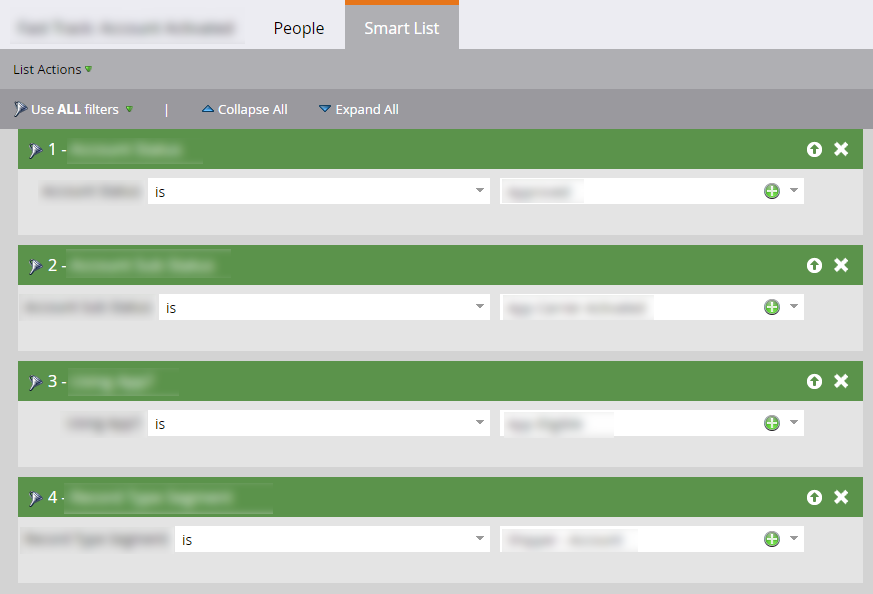
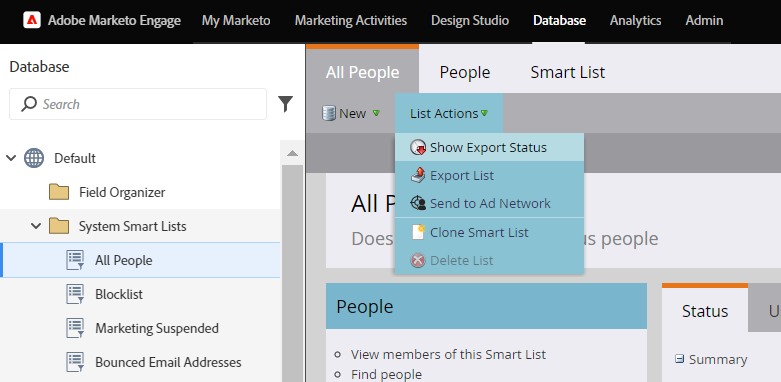
Static Lists → HubSpot Static Lists. Export from Marketo via List Actions → Export List. The export runs in the background; small lists take minutes, large lists hours. Import to HubSpot only after the target properties exist.
6.8 Migrate workflows
For each surviving smart campaign, create the equivalent HubSpot workflow using the exact Marketo name. Marketo's Flow tab maps to HubSpot's Workflow Actions; Marketo's Smart List tab maps to HubSpot's enrollment triggers.
Five Marketo flow actions do not have a direct HubSpot equivalent. Use the documented workaround:
| Marketo action | HubSpot approach |
|---|---|
| Change Program Status | No equivalent. Assign the workflow to the corresponding HubSpot Campaign for attribution. |
| Change Data Value (conditional) | Use an If/Then branch + Set Property Value action + Go-To action to rejoin the main flow. |
| Request Campaign | Maps to "Enroll in another workflow." |
| Campaign is Requested (trigger) | Use HubSpot's Enrollment Triggers: Setup Triggers → Workflows → Enrolled in Workflow → Enrolled By Workflow → select source workflow. |
| Remove From Flow | Use the Goals feature. The Goal acts as an automatic un-enroll when a contact meets the criteria. |

6.9 Configure subscription types
Navigate to Tools → Marketing → Email. Define subscription types before migrating any email; every HubSpot marketing email requires one. Do not mirror Marketo subscription types one-for-one; consolidate to the smallest set that lets users opt in/out per channel intent (Newsletter, Product Updates, Events) plus regional variants if consent law requires.
6.10 Configure lead scoring
HubSpot scoring rules live under Settings → Properties → Contact Properties → HubSpot Score. Replicate Marketo's positive and negative rules.
- HubSpot does not support setting the score to an absolute value or resetting to zero. Where Marketo sets a value, use HubSpot's "add N" instead, anchored to the same trigger.
- Use date ranges in rules (e.g., "form submitted in the last 30 days") to prevent runaway scores.
6.11 Test in sandbox
On HubSpot Enterprise, sync all rebuilt assets to a Sandbox first. Run test contacts through workflows and emails before touching production data.
6.12 Export Marketo data
Two strategies depending on database size:
- Small database: export Contacts, Companies, and Opportunities with all columns, plus lists with just visible columns.
- Large database: export the database with visible columns only, plus lists with all columns. All-column exports on a large database can take hours.
Navigate to Database → System Smart Lists → All People, then List Actions → Export List. Do not use the Marketo to HubSpot Sync App for migration; it only handles text-field properties on the Contact object.
6.13 Configure suppression lists
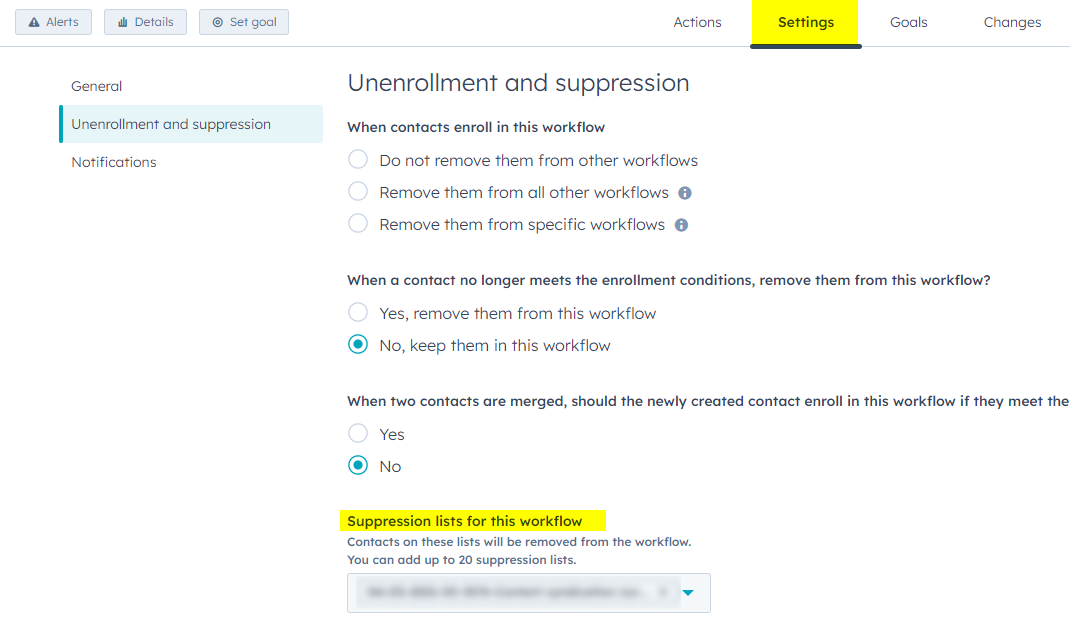
This step prevents contacts who already ran through a Marketo flow from running through the HubSpot equivalent at cutover, which would cause duplicate sends.
- For each migrated workflow, export its Marketo Members List (linked in the inventory).
- Upload the Members List into HubSpot as a Static List, named to match the workflow it suppresses.
- Open the matching HubSpot workflow, go to Settings → Un-enrollment and Suppression, and add the list under "Suppression Lists for this workflow."
- Skip this step only for workflows explicitly designed to allow re-enrollment (typically form-submission triggers).
6.14 Time the cutover
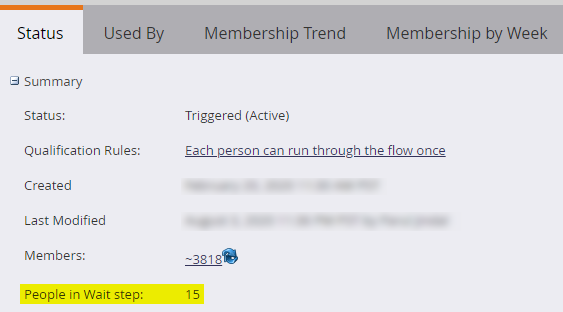
If the Marketo license continues past go-live, let contacts already in a wait step of a Marketo smart campaign finish in Marketo. Check the campaign's Status tab for "People in Wait Step." If non-zero, remove the Smart List criteria so no new contacts enroll, but leave the campaign live until current members complete. If zero, deactivate via the Schedule tab.
6.15 Update DNS and URL redirects
The following steps must happen close to simultaneously to prevent Marketo pages from staying live while HubSpot takes over.
- Update DNS records for the subdomains chosen for HubSpot hosting.
- If HubSpot uses a different subdomain than Marketo, add the old Marketo subdomain as a Redirected Domain in Tools → Website → Domains & URLs.
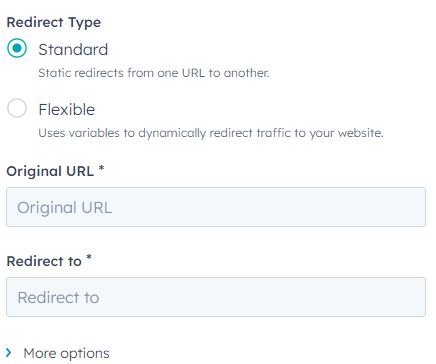
- Add URL redirects under the Redirects tab. Use Standard Redirects for most pages. Enter the full Marketo URL in Original URL and the full HubSpot URL in Redirect To.
6.16 Post-launch monitoring
- Monitor the sync errors dashboard for the first 72 hours. Assign an owner for triage.
- Confirm each redirect resolves correctly. Use a private/incognito window to bypass local cache.
- Validate test sends through migrated workflows.
- Capture issues in a shared tracker. Plan for tweaks to workflows, forms, and landing pages during the first weeks of real usage.
7. Revision History
| Version | Date | Author | Description |
|---|---|---|---|
| 1.0 | 2026-05-21 | Refindable | Initial release. Procedure restructured around the Aptitude8 reference guide. |